













Introduction
If you’re searching for how to remove browser extensions, you’ve probably already noticed that most guides only explain the basic steps for one browser. Some articles focus only on Google Chrome, while others skip important topics like browser performance, privacy risks, or what to do when an extension refuses to uninstall. As someone who regularly researches browser security and writes technical how-to guides, I’ve found that many users struggle not because removing an extension is difficult, but because they don’t know which extensions are safe to keep, when to disable them instead of removing them, or how browser permissions affect their privacy. Modern browsers give extensions powerful access to websites and browsing data, making it important to review and manage them regularly rather than simply installing and forgetting them.
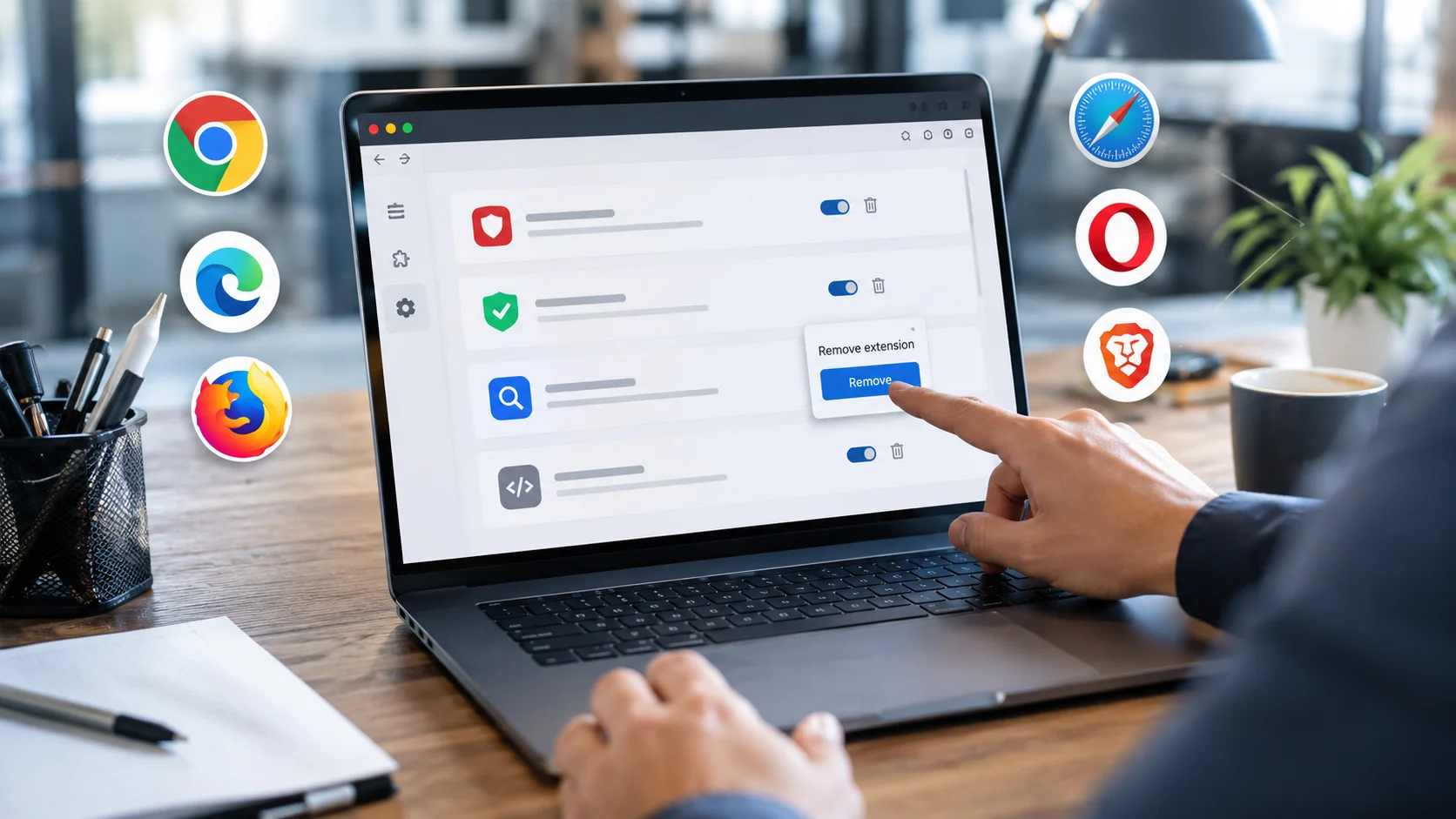
That’s why this guide goes beyond simple uninstall instructions. Instead of covering only one browser, you’ll learn how to remove browser extensions from Google Chrome, Microsoft Edge, Mozilla Firefox, Safari, Opera, and Brave. You’ll also understand the difference between disabling and removing an extension, how to fix extensions that won’t uninstall, and how to identify potentially malicious add-ons. Every recommendation in this guide is based on official browser documentation and widely accepted browser security practices, helping you make informed decisions while keeping your browser fast, secure, and organized.
What Are Browser Extensions?
Browser extensions are small software programs that add extra features to your web browser. They help you block ads, manage passwords, check grammar, translate web pages, take screenshots, improve productivity, and customize your browsing experience. Popular browsers like Google Chrome, Microsoft Edge, Mozilla Firefox, Safari, Opera, and Brave all support browser extensions through their official extension stores.
Although extensions are useful, installing too many or keeping ones you no longer use can slow down your browser, increase memory usage, and create privacy or security risks. Some extensions request permission to read browsing history, access website data, or modify web pages. Reviewing and removing unnecessary extensions regularly helps keep your browser fast and secure.
Why Remove Browser Extensions?
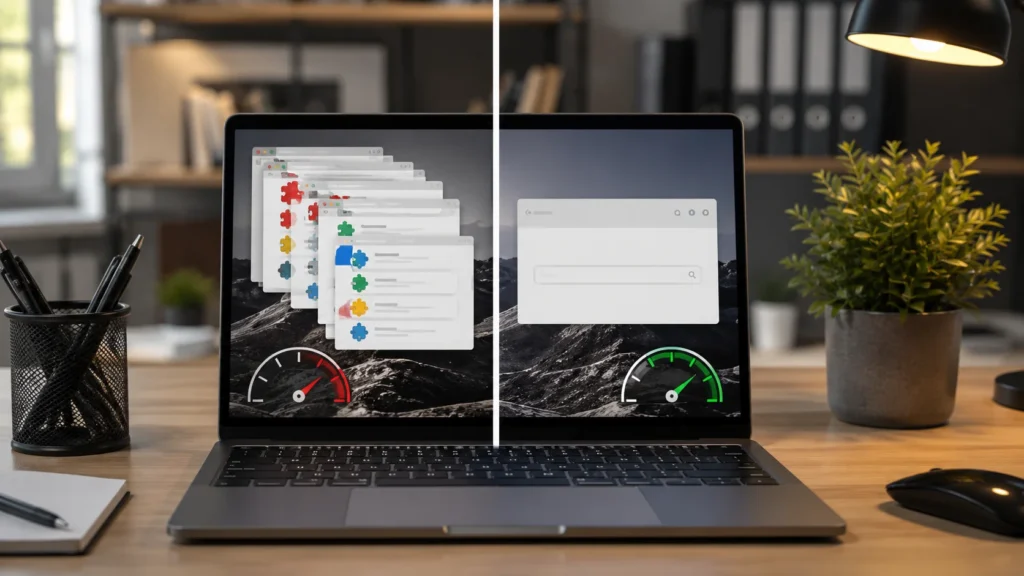
There are several good reasons to remove browser extensions.
- Improve browser speed and performance.
- Reduce memory and CPU usage.
- Protect your privacy.
- Remove malicious or suspicious extensions.
- Fix browser crashes and loading issues.
- Keep your browser clean and organized.
Security experts also recommend uninstalling extensions you no longer use because unnecessary extensions increase the attack surface of your browser and may collect more data than expected.
Disable vs Remove Browser Extensions
🤔 Quick Decision Guide
| If You Want To… | Best Option |
|---|---|
| Fix browser problems | Remove |
| Test whether an extension is causing issues | Disable |
| Improve browser speed | Remove unused extensions |
| Keep the extension for later | Disable |
| Remove suspicious software | Uninstall immediately |
Many people think disabling and removing an extension are the same, but they are different.
If you are unsure whether you’ll need an extension again, disable it first. If you no longer use it or don’t trust it, remove it completely. Firefox, Chrome, and Edge all support both options.
Browser Comparison Table
How to Remove Browser Extensions in Google Chrome
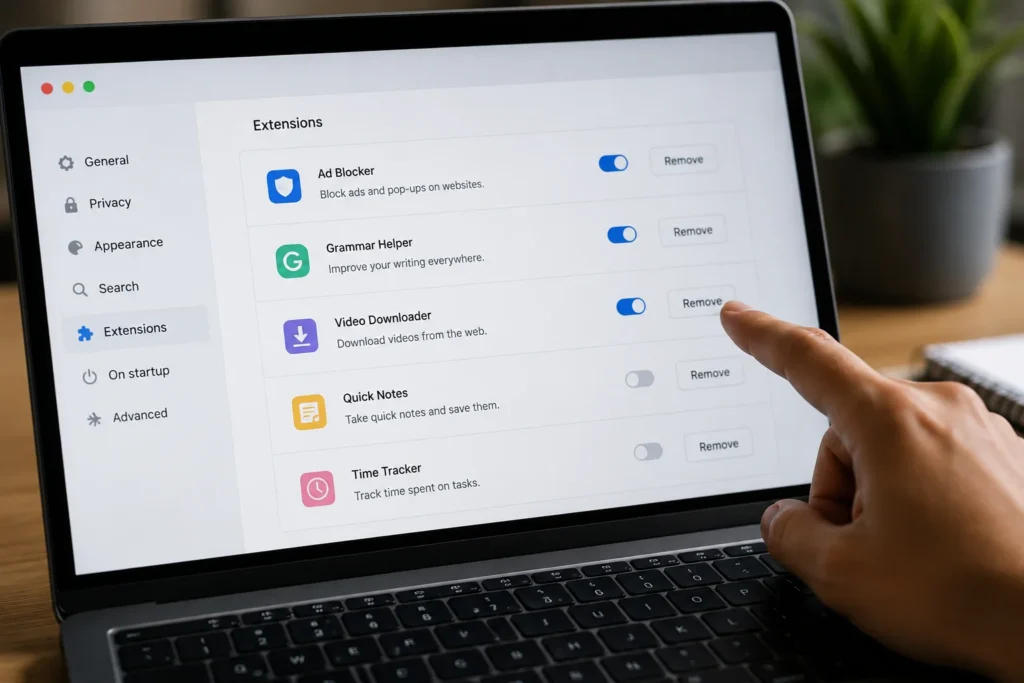
Removing browser extensions in Chrome only takes a few clicks.
- Open Google Chrome.
- Click the three-dot menu in the top-right corner.
- Select Extensions → Manage Extensions.
- Find the extension you want to remove.
- Click Remove.
- Confirm by clicking Remove again.
If the extension icon appears next to the address bar, you can also right-click it and choose Remove from Chrome.
How to Remove Browser Extensions in Microsoft Edge
Microsoft Edge follows a similar process because it is based on Chromium.
- Open Microsoft Edge.
- Click the Extensions icon or open the three-dot menu.
- Select Manage Extensions.
- Locate the extension you want to uninstall.
- Click Remove.
- Confirm the removal.
If you only want to stop using an extension temporarily, you can disable it instead of uninstalling it.
How to Remove Browser Extensions in Safari
Safari users can remove browser extensions in just a few steps.
- Open Safari.
- Click Safari from the menu bar.
- Select Settings (or Preferences on older macOS versions).
- Open the Extensions tab.
- Select the extension you want to remove.
- Click Uninstall, or disable it if you only want to turn it off temporarily.
Safari also lets you review each extension’s permissions before deciding whether to keep or remove it.
How to Remove Browser Extensions in Opera
Opera uses an extension manager similar to other Chromium-based browsers.
- Open Opera.
- Click the Opera Menu.
- Go to Extensions → Extensions.
- Find the extension you want to remove.
- Click Remove.
- Confirm your choice.
Removing unused Opera extensions can improve browser speed and reduce unnecessary background activity.
How to Remove Browser Extensions in Brave
Brave also uses the Chromium extension framework.
- Open Brave.
- Click the menu in the top-right corner.
- Select Extensions → Manage Extensions.
- Locate the extension you want to remove.
- Click Remove.
- Confirm the removal.
You can also right-click an extension icon on the toolbar and select Remove if it is visible.
How to Remove Browser Extensions in Mozilla Firefox
Firefox refers to browser extensions as Add-ons, but removing them is just as easy.
- Open Firefox.
- Click the menu button.
- Select Add-ons and Themes.
- Open the Extensions tab.
- Click the three-dot menu beside the extension.
- Select Remove.
If you think you might use the extension again, choose Disable instead. This turns it off without uninstalling it.
Browser Extension Won’t Remove? Here’s How to Fix It
Sometimes a browser extension refuses to uninstall. This usually happens because it is managed by your workplace or school, protected by browser policies, or affected by unwanted software.
Try these solutions before attempting to remove the extension again:
- Restart your browser and try again.
- Update your browser to the latest version.
- Disable browser syncing temporarily.
- Check whether the extension is managed by an organization.
- Run a trusted antivirus or anti-malware scan.
- Remove suspicious software that may be reinstalling the extension automatically.
If the extension is installed through a work or school policy, you may need administrator permission before it can be removed. Chrome, Edge, and Firefox all provide management AI Tools for extensions, but organization-managed extensions may have additional restrictions.
How to Remove Malicious Browser Extensions

Not every browser extension is trustworthy. Some malicious extensions can display unwanted ads, redirect your searches, collect browsing data, or slow down your browser.
If you suspect an extension is unsafe:
- Remove extensions you don’t recognize.
- Download extensions only from official browser stores.
- Read reviews before installing new extensions.
- Review extension permissions carefully.
- Keep your browser updated.
- Run a malware scan if the problem continues.
Security experts also recommend checking whether an extension has been updated recently and whether it requests permissions that are unnecessary for its purpose.
How Browser Extensions Affect Performance
Every installed extension uses system resources. Some extensions continue running in the background even when you’re not actively using them. This can increase RAM usage, slow browser startup, reduce battery life, and make web pages load more slowly.
Removing extensions you no longer use helps reduce unnecessary background activity and improves overall browser performance. This is especially helpful if you have many extensions installed or notice that your browser has become slower over time. Research has shown that browser extensions can affect browser performance depending on how they are designed and how frequently they execute background tasks.
Privacy Risks of Browser Extensions
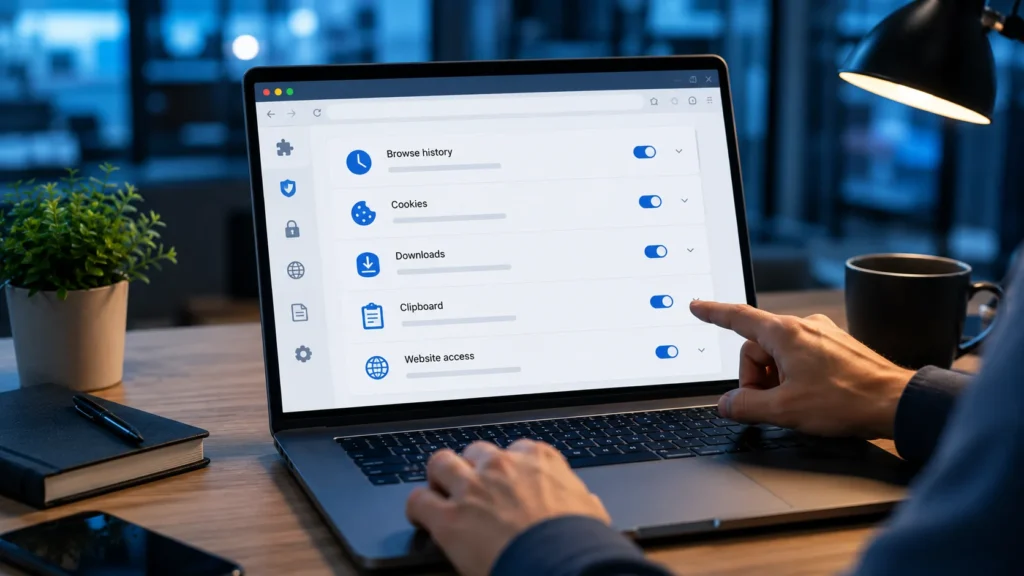
Many browser extensions request permission to access browsing history, website data, cookies, downloads, or clipboard information. While trusted extensions often need these permissions to work correctly, unnecessary or poorly maintained extensions may collect more information than users expect.
Before installing any extension:
- Review its permissions.
- Check the developer’s reputation.
- Read recent user reviews.
- Install extensions only from official browser stores.
- Remove extensions you no longer use.
Taking these simple steps can reduce privacy risks and help keep your personal information secure.
Browser Security Tips
A secure browser is not just about removing extensions. Following a few best practices can help protect your personal information and improve browser performance.
- Install extensions only from trusted developers.
- Keep your browser updated.
- Review extension permissions regularly.
- Remove extensions you no longer use.
- Limit the number of installed extensions.
- Avoid downloading extensions from unofficial websites.
- Run regular malware scans if you notice unusual browser behavior.
These habits reduce security risks while keeping your browser fast and reliable.
Common Mistakes to Avoid
Many users accidentally create more browser problems by making simple mistakes.
Avoid these common errors:
- Removing the wrong extension without checking what it does.
- Installing extensions from unofficial websites.
- Ignoring requested permissions.
- Keeping dozens of unused extensions enabled.
- Forgetting to restart the browser after removing an extension.
- Assuming every extension available in an extension store is completely safe.
Reviewing your installed extensions every few months is a simple way to improve browser security and performance.
Key Takeaways
- Remove browser extensions you no longer use to improve browser performance.
- Disable an extension if you may need it again later.
- Install extensions only from official browser stores.
- Review extension permissions before installing new extensions.
- Remove suspicious or malicious extensions immediately.
- Keep your browser updated for better security and compatibility.
Frequently Asked Questions
Can I reinstall a browser extension after removing it?
Yes. Most browser extensions can be reinstalled from the browser’s official extension store whenever you need them again.
Will removing browser extensions make my browser faster?
In many cases, yes. Removing unused extensions can reduce memory usage, improve browser startup time, and make your browser more responsive, especially if you have many extensions installed.
Is disabling an extension better than removing it?
Disabling is useful if you may need the extension again because it turns the extension off without uninstalling it. Removing an extension completely deletes it from your browser until you reinstall it.
Why can’t I remove a browser extension?
Some extensions are managed by your organization, protected by browser policies, or repeatedly reinstalled by unwanted software. Updating your browser, disabling sync, or scanning for malware can often solve the problem.
Are browser extensions safe?
Most extensions available through official browser stores are safe, but you should still review permissions, check user ratings, verify the developer, and install only the extensions you truly need.
Can I remove browser extensions on mobile?
Support varies by browser. Some mobile browsers have limited or no extension support, while others allow you to disable or remove installed extensions through their settings or extension management page. Check your browser’s official help documentation for device-specific instructions.
Conclusion
Removing browser extensions is one of the simplest ways to improve your browser’s performance, strengthen your privacy, and reduce unnecessary security risks. While extensions can be incredibly useful, keeping too many installed—or leaving unused ones enabled—can slow your browser and increase the amount of data shared with third parties. By reviewing your extensions regularly, installing them only from official browser stores, and paying close attention to requested permissions, you can create a faster and more secure browsing experience. Official browser guidance also encourages users to review extension permissions and remove extensions they no longer need.
From my experience researching browser security topics, the biggest mistake users make is installing helpful-looking extensions and never checking them again. A quick extension audit every few months takes only a few minutes but can significantly improve both performance and online safety. Whether you’re removing an extension to troubleshoot a problem, protect your privacy, or simply clean up your browser, following the steps in this guide will help you manage browser extensions with confidence.
Looking for more practical technology guides? Explore more expert-written tutorials, browser tips, cybersecurity advice, and AI resources on The Write Posts to keep improving your digital skills.